
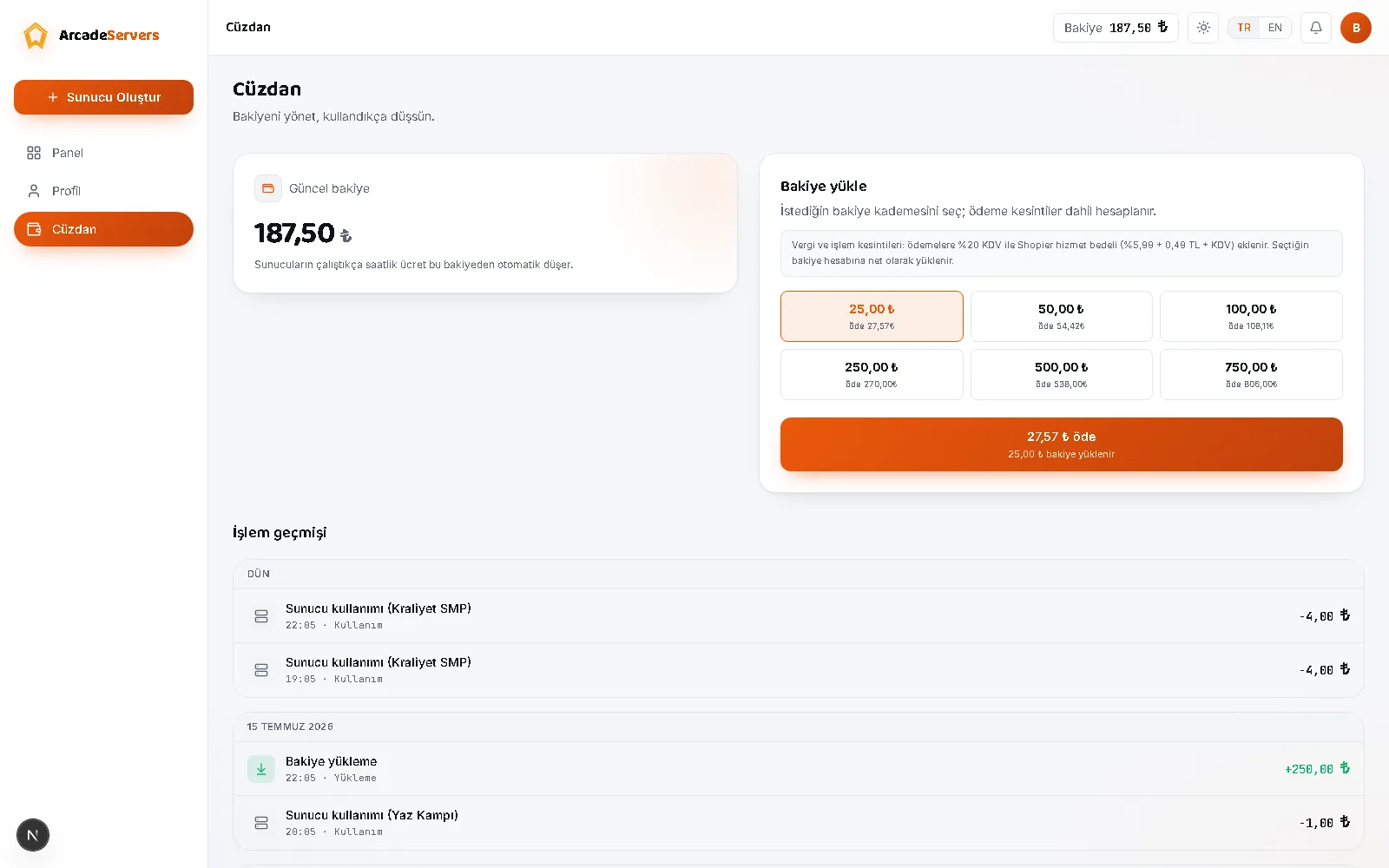
Your servers' hourly charges come out of your prepaid wallet. It covers topping up, how amounts are calculated, what to check when credit doesn't appear, and how much to load.
Steps
- Go to the Wallet page in the panel.
- In the top up box, pick a preset tier. Each tier shows the coins you get on top and the lira you pay underneath.
- Tick the distance sales agreement box — every top-up is a separate sale, so consent is taken each time.
- The payment window opens inside the panel, in the middle of the screen; pay there.
- The moment it is approved the window closes, a green tick appears, and your balance refreshes. A receipt email and a panel notification follow.
You can't type your own amount; only the listed tiers can be loaded. If your need falls between two, take the higher one — leftover credit waits in your wallet.
The most critical rule
Pay using the email address registered to your account. A payment reaches your wallet because the buyer email matches your account's exactly — a deliberate rule, so nobody can grab someone else's payment. Pay from another address and crediting doesn't run: the money follows that address to whatever account owns it, and if none does, support adds it by hand.
This is behind almost every payment that never shows up: a family member's address, or a second mailbox. Read the email field once before you submit.
How are the amounts calculated?
Payment is taken in Turkish lira, and 1 coin equals 1 TL. The coin amount you select is credited in full; nothing is deducted from the balance itself.
At payment, VAT and a payment service fee are added on top. So what you pay is slightly higher than what lands in your wallet; the rates and the total payable are written out separately in the top-up box.
If the payment window closes
Close the window with the X and the panel first checks whether the payment went through; if not, it asks whether you are cancelling. Choose no, continue and it reopens where you left off.
Even if you close the tab, your payment isn't lost: a background matcher scans every few minutes for payments that haven't reached a wallet and credits the matching account. The payment session lasts about half an hour; after that, start over.
If your balance doesn't appear, check in this order
- Wait a few minutes and refresh the Wallet page; a short delay in approval is normal.
- Look at the transaction history. The top-up appears as its own Wallet top-up row; if it's there the money landed and the figure on screen is merely stale.
- Look for the receipt. When credit is applied, a payment-received email and a panel notification go out; check spam too.
- Check which email you paid with. If the address you typed on the payment screen differs from your account's, automatic crediting won't run.
- Open a support request from your registered email with the payment's date. The record stays in the system; it isn't lost.
Common mistakes
- Skipping the checkbox. The pay button stays dimmed until the distance sales agreement is ticked.
- Starting payment over and over. Too many attempts in a short window and the panel blocks new ones for a while; finishing the one already open is faster.
- Trying a promo code before verifying your email. Promo codes and the signup gift are only paid into an account with a verified email.
- Trying the same code on a second account. Addresses derived with a plus sign count as the same person; a code is used once.
- Leaving the balance to the last minute. Starting a server needs at least one hour's worth of balance; below that the start request is refused.
How much should you load?
Only running servers draw on your wallet: a stopped or sleeping server costs nothing, File Protection is free, and there is no separate storage charge. The rough sum: read the hourly price in the panel, estimate hours per day, multiply.
- Just trying it out — a small tier is enough; if you don't like it you stop the server and the credit waits.
- A server played on in the evenings — real spend lands below your estimate: with idle sleep on, a server with no players for 15 minutes sleeps by itself and the following hours aren't charged.
- A server meant to stay on — take a larger tier and set a daily spending limit under Settings: you are warned at eighty percent and the server stops at the limit, so one unexpected night can't drain the wallet.
If your balance runs out
When your balance falls below three hours of your running servers' combined hourly cost, a panel notification and an email go out, at most once a day. If it runs out completely, your servers are put to sleep, your files stay put, and one click wakes them after you top up. For detail, see the sleep mode article.
To audit spending later, the Wallet page's period summary covers the last 30 days, and the history can be filtered by server and date range and downloaded as a table.
How the hour is counted is covered in the billing article, refunds of unspent balance in the refunds article, and live hourly rates on the packages page.