
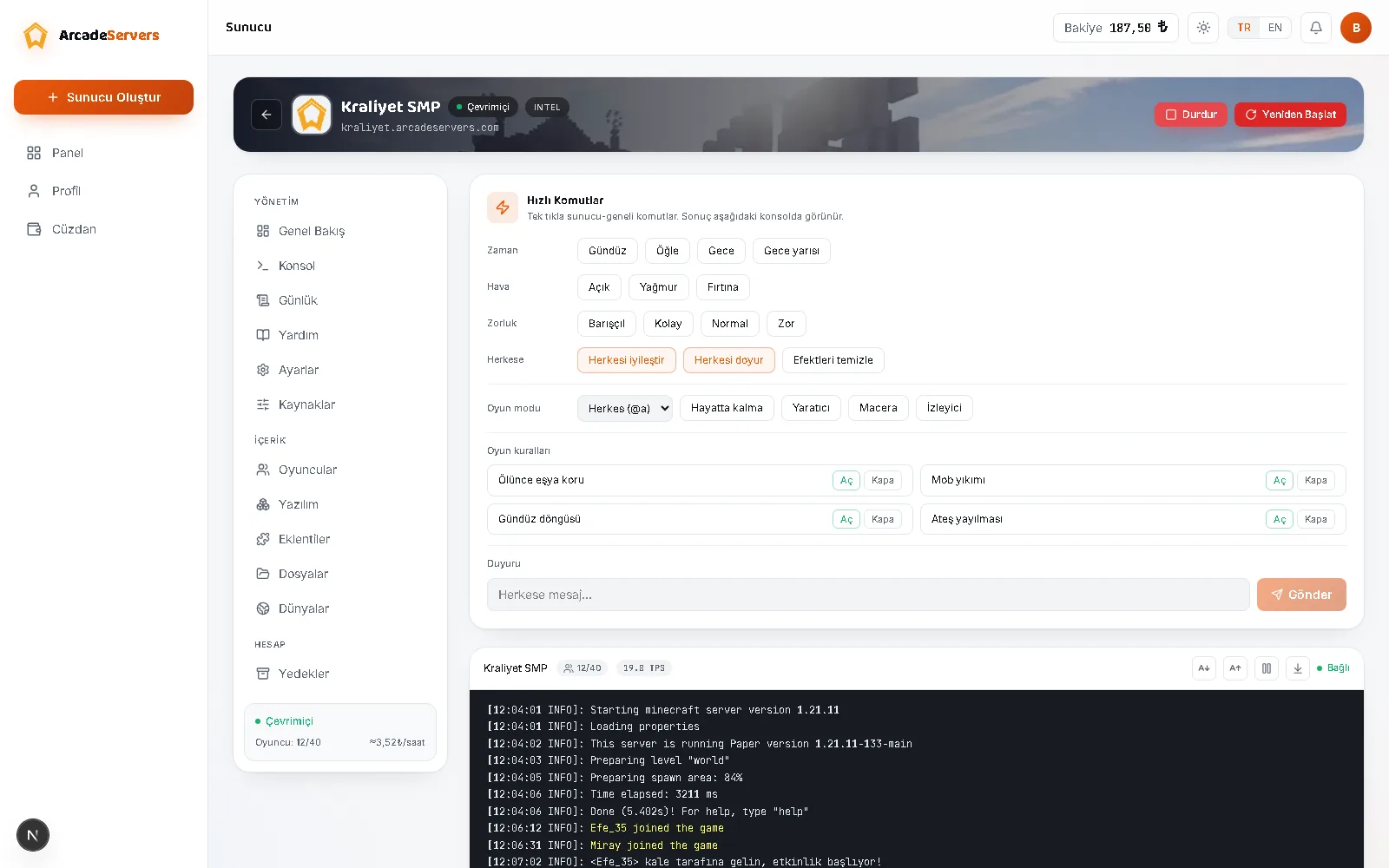
The console is your server's own voice: it says what it's doing, what it's stuck on and why it shut down. The panel's Console section streams that live and lets you send commands.
Sending commands
Type a command in the line at the bottom and send. No leading slash needed: you write say Hello, time set day or weather clear directly.
The up arrow key brings back commands you sent earlier; the down arrow walks back the other way. The history keeps the last 100 commands per server in your browser, so it is empty on another device or after you clear browsing data.
Commands run as the server itself, which has no player identity, so @s does not work here — target players with @a or by name.
Controls that make the stream readable
- Pause auto-scroll — freezes scrolling so you can read a line while the stream is fast, then resumes where you left off.
- Jump to bottom — returns to the live lines after scrolling through history.
- Bigger / smaller text — useful when reading long log lines; the size you pick is remembered.
With focus in the command box, Ctrl + L clears the screen. That wipes your view only; the server's log file is untouched. The screen holds the last 1500 lines; error lines get a red background, warnings amber, colour codes are drawn as written, and IP addresses are masked for privacy.
Running commands without typing
The Quick Commands panel above the console changes time, weather, difficulty, game mode and the common game rules in one click, and announces a message to everyone. It never appears on servers inside a network, and while the server is stopped its buttons are inactive.
While the server is off
In an error state the console keeps showing the last lines under a red notice. The reason is usually printed there; if you can't work it out, attach those lines to your support request.
On a stopped or sleeping server the console stays empty: it is not attached to a machine, so there is no live output. The panel says so, and the stream restarts the moment you press Start — the sleep mode article explains when sleep kicks in.
For older records use the Logs section: search past log files, filter down to error and warning lines, download the file. On large files the viewer opens the tail only, so download it for the whole file. The History section names the reason it stopped: you stopped it, it slept with no players, the balance ran out, the daily spending limit was hit, or it shut down unexpectedly.
What to look for in the console
- A server that stops at boot — the last thirty lines usually name the plugin or mod causing it.
- Can't keep up! / Overloaded — the server failed to finish a tick in time. Constant repetition means a performance problem.
- Plugin incompatibility — the error line states which version it expected.
Troubleshooting
- Asleep in the console's own status label, top right: there is no console to connect to; press Start in the top bar.
- Retrying: the panel keeps trying by itself at widening intervals; refresh the tab if it doesn't clear in a few minutes.
- Connected but a blank screen: the server may not have produced output yet, or you cleared it — check that moment in Logs.
- Send button greyed out: the box is empty or the connection isn't up.
- Command sent but nothing happened: read the lines right underneath. “Unknown or incomplete command” means it does not exist in your software, or is misspelled.
- Stream frozen: the pause button is still engaged; resume it or use Jump to bottom.
- Crash at boot: read the first line of the error block and its “Caused by” part, not the last — the closing lines are usually consequences.
Common mistakes
- Putting a slash in front of the command — the first thing to check when one isn't recognised.
- Clearing the screen and assuming the log file was deleted; it stays where it is.
- Treating a single “Can't keep up!” as a fault. It is normal at boot or during world generation; the problem is it repeating without a break.
- Trying to change configuration files with console commands. Settings live in the Settings and Files sections, and most changes need a restart.
- Looking for a player's IP; it is masked in the lines.
- Hunting for yesterday's error on a server that just woke up — the screen fills from scratch, and yesterday is in Logs.
Which screen to open when
- Seeing what happens right now and stepping in: Console.
- Finding something from yesterday or last week, or getting the whole file: Logs.
- How long a session ran, who played in it and why it ended, side by side: History.
- The same command every day at a set time: define it in Tasks and attach the time in Scheduler (both closed on the free tier).
- Kicking, banning or granting permissions without memorising commands: Players.
A performance symptom you spot here is diagnosed step by step in the performance guide. The Players section turns kicks, bans and permissions into buttons, and the plugin guide covers removing or upgrading a plugin the console names.